
Text-to-video is the feature most people try first on Deevid AI — type a sentence, get a moving clip back. It’s also the feature most people get wrong first, because they treat it like a search box instead of a brief for a camera operator who has never seen the scene.
This tutorial walks through the whole thing the way we actually do it after 30 days inside the tool: from your first prompt to a finished, watermark-free export. No hype, no invented numbers — just the workflow, the model choices that matter, and the mistakes that quietly burn your credits.
If you’ve never opened the tool, our Deevid AI beginner’s guide covers signup and the interface first; come back here for the text-to-video part specifically.
What Deevid AI’s text-to-video actually does
Deevid is not a single model with a text box bolted on. It’s an aggregator: one interface that routes your prompt to one of 14+ video models — Sora 2, Google Veo 3.1, Kling, Pika, Seedance, Haiper and more. When you generate from text, you’re really doing two things at once: writing a description and choosing which engine renders it.
That matters because the same prompt produces very different results on different models. A cinematic tracking shot that looks gorgeous on Veo can come out stiff on a lighter model — and cost a fraction of the credits in the process. Most “Deevid is inconsistent” complaints are really “I used the wrong model for the shot.” We’ll fix that below.
The other thing to understand up front: text-to-video is best for net-new scenes you can describe — a product spinning on a pedestal, a drone shot over a coastline, an animated character walking through a city. If you already have a still image you want to animate, image-to-video gives you far more control, and we cover that in a separate walkthrough.
Before you start: account, credits and models
You need a free account and an understanding of how credits work, because every generation — successful or not — spends them.

Here’s the honest version of the economics. The free tier gives you a small batch of one-time credits to evaluate output — but exports are watermarked and not licensed for commercial use. The Lite plan at $10/month (200 credits, ~40 videos) is the first tier that gives you clean, owned output. Pro at $25/month (600 credits) adds 1080p plus bundled AI music and voice. Premium at $119/month (3,000 credits) is for high-volume work.
The practical takeaway: test on the free credits, then bill monthly before annual. We explain why in our honest take on whether Deevid AI is legit — the no-refund policy makes “try before you commit” non-negotiable.
Step-by-step: your first text-to-video
Here’s the official Deevid walkthrough for the text-to-video tool, then the steps written out so you can follow along without rewatching:
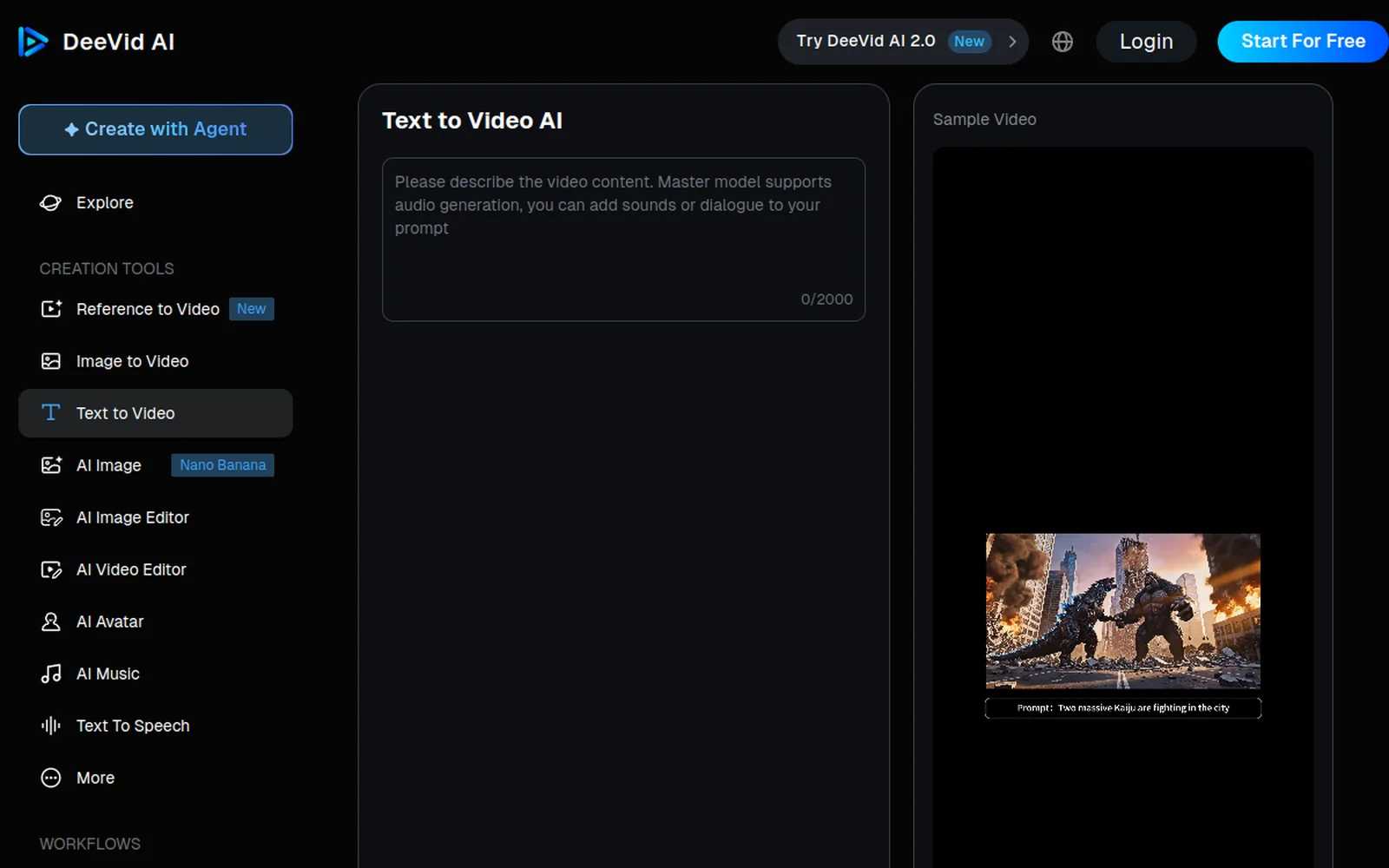
Step 1: Open the text-to-video tool
From the dashboard, choose Text to Video (or describe what you want in the Agent prompt bar and let it route you). You’ll get a prompt field, a model selector, and controls for duration, aspect ratio and resolution.
Step 2: Write a prompt the model can follow
This is where the result is won or lost. A weak prompt — “a cat in a city” — gives the model total freedom, which means it invents everything and you get a coin-flip. A strong prompt reads like a single shot description:
Close-up, slow dolly-in on a ginger cat sitting on a neon-lit Tokyo fire escape at night, rain falling, shallow depth of field, cinematic, 35mm.
Notice the structure: subject → action → setting → camera → lighting → style. You’re not writing a story; you’re describing one continuous shot. Keep it to a single scene — if you want a sequence, generate each shot separately and stitch them.
Step 3: Pick the right model for the shot
Match the engine to the job:
- Cinematic motion, realism, complex camera moves → Veo 3.1 or Sora 2 (higher credit cost, best quality).
- Stylised, fast social clips → Kling or Pika (good motion, lighter cost).
- Fast iteration while you test a prompt → a “fast” model variant, to avoid spending premium credits before the prompt is proven.
This single decision is the difference between a usable clip and a wasted generation. When in doubt, prototype cheap, then re-run the winning prompt on the premium model.
Step 4: Generate, review, and iterate
Hit generate and wait — render times vary by model and length, typically under a couple of minutes for short clips. Then judge the result honestly against your brief. If the motion is off or the subject drifts, tweak one variable at a time (the camera move, or the lighting, or the model) rather than rewriting the whole prompt. AI video is iterative; budget for 2–3 takes per usable shot.
Step 5: Refine, add audio, and export
Once you have a take you like, layer in audio (on Pro and above you can generate AI music and voice in the same interface), confirm your resolution, and export. On any paid tier the export is watermark-free with a commercial license — which is the whole reason to be on a paid tier in the first place.
How to write prompts that work (the part most tutorials skip)
If you only improve one thing, improve your prompts. A few rules that consistently raise hit-rate:
- One shot per prompt. Models handle a single continuous action far better than “and then…” sequences.
- Name the camera. “Dolly in,” “orbit,” “static wide,” “handheld” — camera language steers motion more than adjectives do.
- Specify lighting and lens. “Golden hour,” “soft key light,” “35mm,” “shallow depth of field” push the output toward cinematic instead of generic.
- Avoid on-screen text. Text rendered inside generated video is still unreliable — add captions in post instead.
- Describe motion, not just objects. “A flag” is a photo; “a flag rippling in a strong wind” is a video.
For ready-made structures, our Deevid AI prompt guide has templates you can paste and adapt — worth bookmarking before a long session.
Choosing the right model: Veo, Kling, Sora, Seedance…
Because Deevid bundles competing engines, you effectively get a model shoot-out inside one subscription. As a rough map:
- Veo 3.1 / Sora 2 — your “hero shot” models. Best realism and motion coherence, highest credit cost.
- Kling — strong on stylised and character-driven motion; popular for social.
- Pika — quick, punchy short clips.
- Seedance — practical, fast iteration for everyday content.
This bundling is exactly why a single Deevid plan can replace several standalone subscriptions — a point we dig into in our Deevid AI vs Runway comparison, where both tools have moved to the multi-model model. If you mostly care about which raw engine wins, the alternatives hub lines Deevid up against each competitor directly.
Credits: what a text-to-video clip really costs
Credits are consumed per generation attempt, and the amount scales with model, resolution and clip length — a premium-model 1080p clip costs meaningfully more than a fast-model 720p test. The trap is failed or “almost right” generations: they still cost credits, so an unproven prompt run repeatedly on an expensive model is how budgets evaporate.
The fix is the workflow above — prototype on a cheap model, only spend premium credits on a validated prompt. If you want the full breakdown of plans and per-clip economics, see our Deevid AI pricing explained guide.
Common mistakes (and how to avoid them)
- Treating the prompt like a search query. Describe a shot, not a topic.
- Generating sequences in one prompt. Do one shot at a time, then edit together.
- Running tests on premium models. Validate cheap, finish expensive.
- Expecting legible on-screen text. Add it in post.
- Judging the tool on one take. Always run a few variants before deciding.
- Buying annual on day one. Use the free credits, then monthly, until you trust your own results.
FAQ
Is Deevid AI text-to-video free? You can test it on a small batch of free credits, but exports are watermarked and not licensed for commercial use. Removing the watermark and unlocking commercial rights requires a paid plan starting at $10/month.
Which model is best for text-to-video? For realism and complex camera moves, Veo 3.1 or Sora 2. For stylised or social clips, Kling or Pika. Prototype on a fast model first, then re-run your final prompt on a premium one.
Why do my generations look inconsistent? Usually a model mismatch or a vague prompt. Pin down the subject, camera move and lighting, keep it to one shot, and pick a model suited to that shot.
Can I make long videos? Each generation is a short clip. Build longer pieces by generating individual shots and editing them together — that also gives you far more control over the final cut.
Text-to-video is the fastest way into Deevid, but the quality ceiling is set by your prompts and model choices, not the tool. Nail those two and the credit math takes care of itself. When you’re ready to test it on your own briefs, start on the free credits and judge it against your real work — not a demo reel.